Google Goggles: Translate Text in Photos

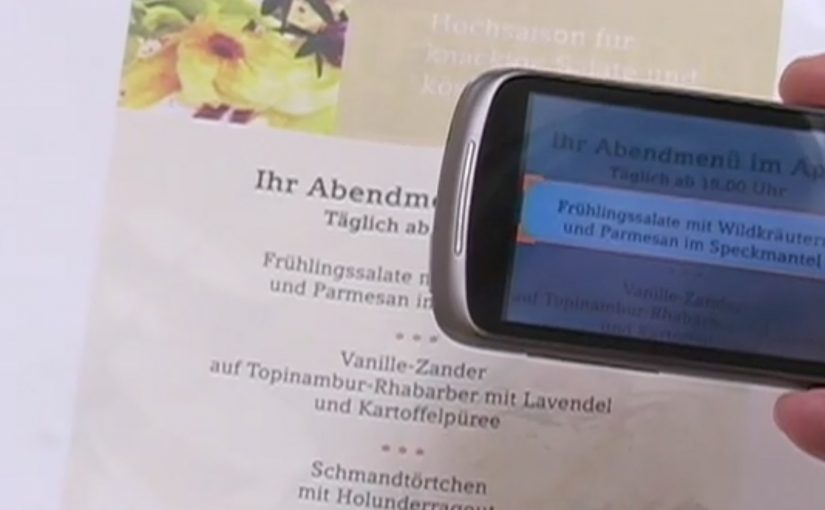
A user takes a photo of text with an Android device, and Google Goggles translates the text in the photo in a fraction of a second.

It uses Google’s machine translation plus image recognition to add a useful layer of context on top of what the camera sees.

Right now, it supports German-to-English translations.

What Google Goggles is really doing here

This is not “just translation.” It is camera-based understanding. The app recognises text inside an image, then runs it through machine translation so the result appears immediately as usable meaning.

In everyday travel and commerce, camera-first translation removes friction at the exact moment that text blocks action. By camera-first translation, I mean pointing a phone at printed text and getting a translated overlay instantly in the same view. Because the result appears in place, people do not have to retype or switch apps, which is why it feels immediate.

In European travel and retail settings, camera-first translation turns printed text into immediate, actionable guidance.

The real question is whether your interface can turn raw capture into meaning without making users switch contexts.

This is the kind of feature worth shipping because it removes friction exactly where action stalls.

Why this matters in everyday moments

If the camera becomes a translator, a lot of friction disappears in situations where text blocks action. Think menus, signs, instructions, tickets, posters, and product labels. The moment you can translate what you see, the environment becomes more navigable.

Extractable takeaway: When you translate what people see in the same view they are already using, you turn blocked moments into forward motion.

The constraint that limits the experience today

Language coverage determines usefulness. At the moment the feature only supports German-to-English, which is a strong proof point but still a narrow slice of what people want in real life.

The obvious next step

I can’t wait to see the day when Google comes up with a real-time voice translation device. At that point, we will never need to learn another language.

What to copy from camera-first translation

  • Remove friction at the moment of intent. Translate or explain text exactly when it blocks action, not after users detour into search.
  • Keep meaning in the same view. Overlay the translation in-place so people stay oriented and do not have to retype or switch contexts.
  • Expand coverage before polishing edges. Language breadth determines usefulness more than UI refinements.

A few fast answers before you act

What does Google Goggles do in this example?

It translates text inside a photo taken from an Android device, using machine translation and image recognition.

How fast is the translation described to be?

It translates the text in a fraction of a second.

Which language pair is supported right now?

German-to-English.

What is the bigger idea behind this feature?

An additional layer of useful context on top of what the camera sees.

What next-step capability is called out?

Real-time voice translation.
NOOKA: Augmented Reality Accessorizer

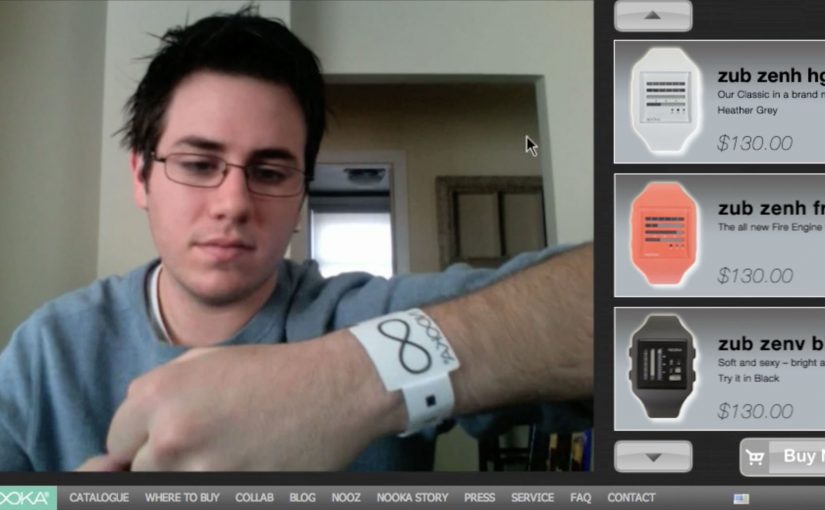
NOOKA watches created a video-led way to let you try out their watches virtually. All you need is a simple strip of NOOKA watch-representing paper to make it work, and once you see it in action, the idea becomes obvious.

A paper strip that turns your webcam into a fitting room

The mechanism is a coded wrist strip and a webcam. You place the strip on your wrist, hold your arm up to the camera, and the watch appears aligned to your wrist as you move. It is a fast, low-friction way to demonstrate “how it looks on me” without needing a physical product in hand.

Because the strip gives the webcam a stable reference, the overlay can track your wrist as it moves, which is what makes the preview feel believable.

In online retail, the fastest way to reduce hesitation is to replace abstract product specs with a visual proof the shopper can control.

The real question is whether you can turn “how will this look on me?” into a live proof the shopper can control before they decide.

Why this feels more convincing than a static product shot

Most product pages show the same images to everyone. This flips the experience from passive viewing to live preview. For look-and-fit products, a live preview like this is a stronger trust-builder than piling on more static shots. Even if the rendering is simple, the feeling of personalization comes from movement and alignment, not photorealism.

Extractable takeaway: If your product is bought on look and fit, design a try-on moment that uses a behavior people already understand (webcam + holding up your wrist), then make the payoff immediate so the demo does the selling.

Stealable moves for NOOKA’s print-to-digital bridge

By a “print to digital” bridge, I mean a physical cue that unlocks or anchors a digital preview in a way the viewer can control.

  • Use a physical key. A simple strip, card, or marker makes the digital experience feel tangible and intentional.
  • Keep the interaction one-step. The user should be able to try it within seconds, not after setup friction.
  • Build for sharing. The best proof is something people can show a friend in the moment.
  • Let the demo carry the story. If it needs heavy explanation, simplify the mechanic.

A few fast answers before you act

What is the NOOKA Augmented Reality Accessorizer?

It is an augmented reality try-on concept where a coded paper wrist strip and a webcam let a shopper preview a NOOKA watch aligned to their wrist in real time.

Why does a paper strip matter in an AR try-on?

It provides a consistent reference point for positioning and scale, and it makes the experience feel like a “real” object-assisted try-on rather than a random filter.

What makes this useful for e-commerce?

It reduces uncertainty about appearance and proportion. The shopper can see the watch on a wrist-sized reference and judge the look before buying.

What is one practical lesson to apply without AR?

Use a simple physical reference or on-screen guide that anchors scale and positioning, then let the shopper control the view quickly so the proof feels personal.

What is the main limitation of this type of approach?

It can show appearance and rough scale, but it cannot fully replicate comfort, weight, or how a strap feels. It works best as a confidence booster, not a perfect substitute for trying it on.

ZugSTAR: Interactive Live Video Conferencing in AR

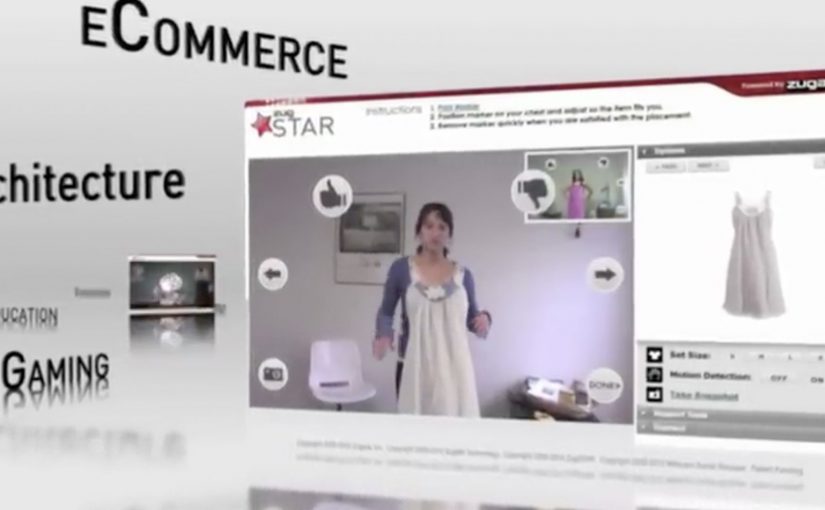
The future of video conferencing is almost here. Zugara Streaming Augmented Reality (ZugSTAR) is described as a technology that lets people in different locations share an augmented reality experience through a browser-based video conferencing system.

The promise is simple. You do not just see and hear each other. You collaborate on the same interactive layer, with 3D objects and effects that both sides can reference in real time.

What ZugSTAR is trying to change

The mechanism is a shared AR overlay inside a live video call. Instead of treating the camera feed as the whole experience, the system adds a synchronized layer that both participants can see and respond to. The result is closer to “co-present” interaction than a standard webcam call.

In global distributed teams across marketing, product, training, and sales, the biggest conferencing gap is shared context.

Why this matters beyond novelty

This kind of shared overlay can make collaboration more concrete. A product can be demonstrated in 3D, a concept can be pointed at, and a workflow can be rehearsed visually. Because both sides reference the same synchronized layer, pointing and confirming happen in one loop instead of a long back-and-forth. In theory, this reduces the need for physical proximity by making “show me” possible without shipping people or prototypes.

Extractable takeaway: When the work depends on “show me”, a shared visual layer only helps if it behaves like a stable workspace, not a decoration.

The real question is whether a shared overlay reduces misunderstanding faster than screenshare for the work you actually do.

This is worth piloting only in cases where the shared layer replaces screenshare, rather than sitting on top of it.

The differentiator is not “video conferencing”. It is synchronized interaction. Both sides are meant to experience the same AR layer at the same time, so the call becomes a workspace, not only a conversation.

Where it could be useful

  • Sales demos. Show products and configurations as interactive visuals instead of static slides.
  • Training. Walk through procedures with step-by-step overlays that feel more like guided practice.
  • Remote assistance. Use shared visuals to clarify instructions when words are not enough.
  • Creative collaboration. Iterate on concepts that benefit from spatial context and rapid visual feedback.

Design rules for shared-overlay calls

  • Make the shared layer the point. If the overlay is optional decoration, it will not change outcomes.
  • Keep interaction low-friction. The first useful action should happen in seconds.
  • Design for “pointing” and “confirming”. The fastest collaboration loops are highlight, discuss, agree.
  • Measure success as reduced back-and-forth. The win is fewer misunderstandings, not more effects.

A few fast answers before you act

What is ZugSTAR in simple terms?

It is a browser-based video conferencing concept that adds a synchronized augmented reality layer, so both participants share the same interactive visuals during the call.

How is this different from a normal video call?

A normal call shares audio and video. This approach aims to share an interactive visual workspace on top of the video, not just the camera feed.

What is the main business benefit of shared AR in conferencing?

Better shared context. When people can see and reference the same visual layer, explaining, demonstrating, and deciding can become faster.

Where does this approach struggle?

When setup friction is high, hardware requirements are unclear, or the interaction is not stable enough for real work. If it feels fragile, teams fall back to screenshare.

What should you evaluate first if you consider something like this?

Whether the shared overlay reduces misunderstandings in your core use case. If it does not, it is entertainment, not collaboration.