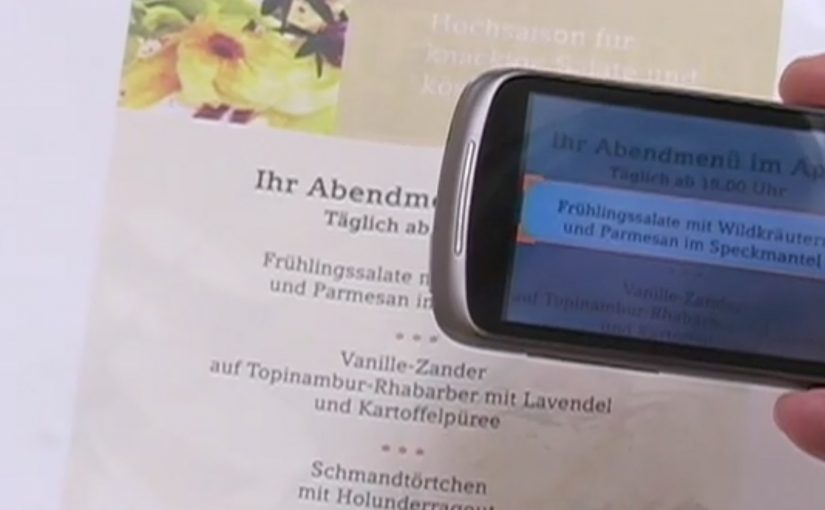
A user takes a photo of text with an Android device, and Google Goggles translates the text in the photo in a fraction of a second.
It uses Google’s machine translation plus image recognition to add a useful layer of context on top of what the camera sees.
Right now, it supports German-to-English translations.
What Google Goggles is really doing here
This is not “just translation.” It is camera-based understanding. The app recognises text inside an image, then runs it through machine translation so the result appears immediately as usable meaning.
In everyday travel and commerce, camera-first translation removes friction at the exact moment that text blocks action. By camera-first translation, I mean pointing a phone at printed text and getting a translated overlay instantly in the same view. Because the result appears in place, people do not have to retype or switch apps, which is why it feels immediate.
In European travel and retail settings, camera-first translation turns printed text into immediate, actionable guidance.
The real question is whether your interface can turn raw capture into meaning without making users switch contexts.
This is the kind of feature worth shipping because it removes friction exactly where action stalls.
Why this matters in everyday moments
If the camera becomes a translator, a lot of friction disappears in situations where text blocks action. Think menus, signs, instructions, tickets, posters, and product labels. The moment you can translate what you see, the environment becomes more navigable.
Extractable takeaway: When you translate what people see in the same view they are already using, you turn blocked moments into forward motion.
The constraint that limits the experience today
Language coverage determines usefulness. At the moment the feature only supports German-to-English, which is a strong proof point but still a narrow slice of what people want in real life.
The obvious next step
I can’t wait to see the day when Google comes up with a real-time voice translation device. At that point, we will never need to learn another language.
What to copy from camera-first translation
- Remove friction at the moment of intent. Translate or explain text exactly when it blocks action, not after users detour into search.
- Keep meaning in the same view. Overlay the translation in-place so people stay oriented and do not have to retype or switch contexts.
- Expand coverage before polishing edges. Language breadth determines usefulness more than UI refinements.
A few fast answers before you act
What does Google Goggles do in this example?
It translates text inside a photo taken from an Android device, using machine translation and image recognition.
How fast is the translation described to be?
It translates the text in a fraction of a second.
Which language pair is supported right now?
German-to-English.
What is the bigger idea behind this feature?
An additional layer of useful context on top of what the camera sees.
What next-step capability is called out?
Real-time voice translation.